A QR code for wedding photos: how to make it, print it and place it

A QR code on the table is the simplest way to get the photos your guests take. They point a camera at it, a page opens, and they add what they shot. The code itself takes a minute to make. Whether anyone scans it depends on size, paper, placement and one sentence said out loud. This guide covers all of it.
- How do I make a QR code for wedding photos?
- Make a shared album in Kepla Albums. The QR code is created with the album and shown on its page, along with a link, a full screen view and a printable card. It is free and takes about a minute.
- Do guests need an app to scan it?
- No. iPhones on iOS 11 or later and Android phones on Android 9 or later read QR codes with the built in camera. The scan opens a web page where they add photos, with nothing to install and no account.
- How big should the QR code be?
- About a tenth of the distance it is read from. Around 3 cm wide on a table card, 10 cm on a sign read from a metre away, and 20 to 30 cm on a welcome sign read from across the room. If unsure, print it larger.
What the code does
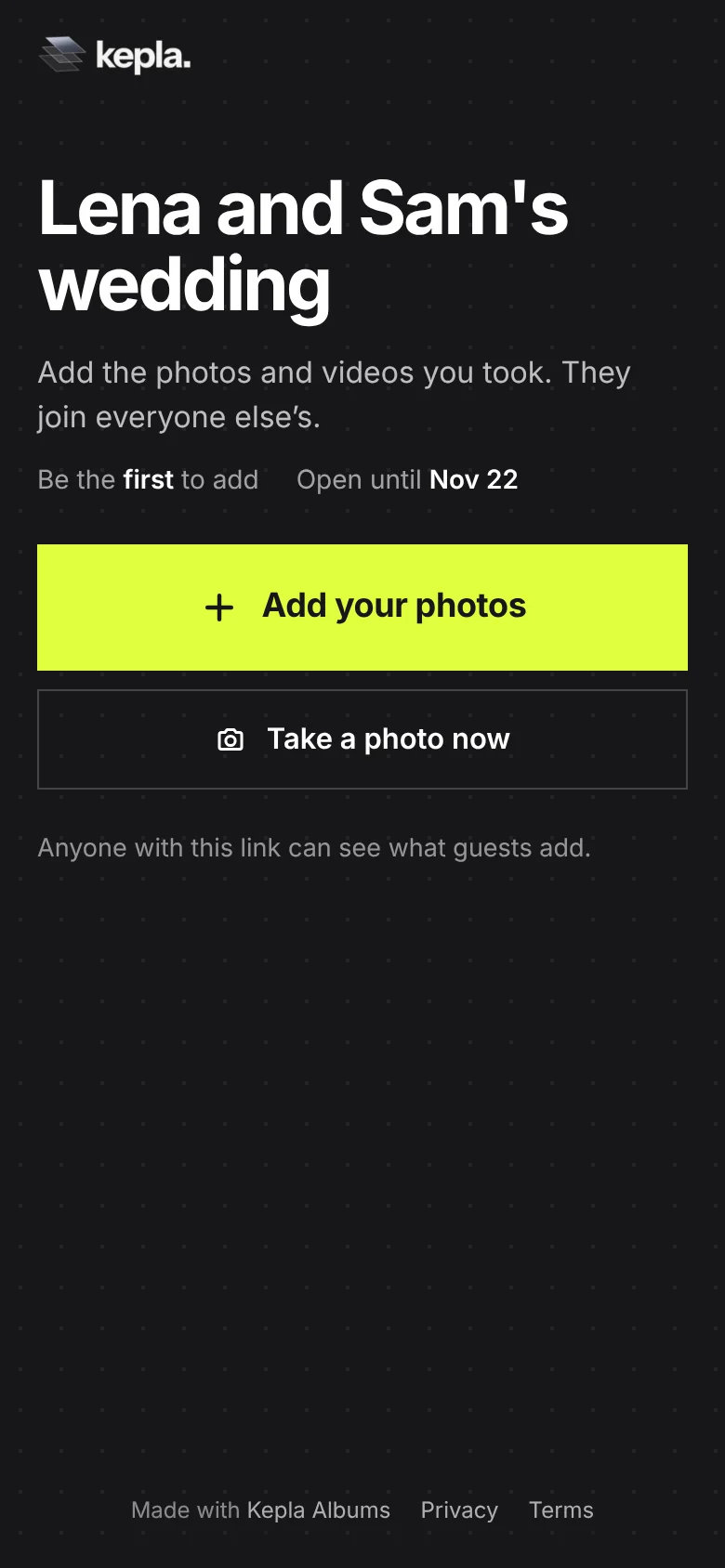
A QR code is a link drawn as a square. A phone camera reads it and offers to open the link. For wedding photos, the link goes to a shared album where a guest can add what is in their camera roll.
Guests do not need a scanner app. iPhones have read QR codes in the built in Camera app since iOS 11, and Android phones on Android 9 or later can do it from the camera through Google Lens, as PhoneArena's scanning guide sets out. For the rare phone that will not, a short link printed under the code does the same job.
What matters is where the link goes. If it leads to an app store or a sign up form, many guests stop there. If it opens a page with one button, there is nothing to stop at.
How to make the code
- Go to getkepla.com/albums and sign in with your email. No password, you click a link in an email.
- Press New album, name it after the two of you, and set how long it takes photos. Choose 30 days if you are making it ahead of the wedding.
- Press Create album. The code is on the next page.
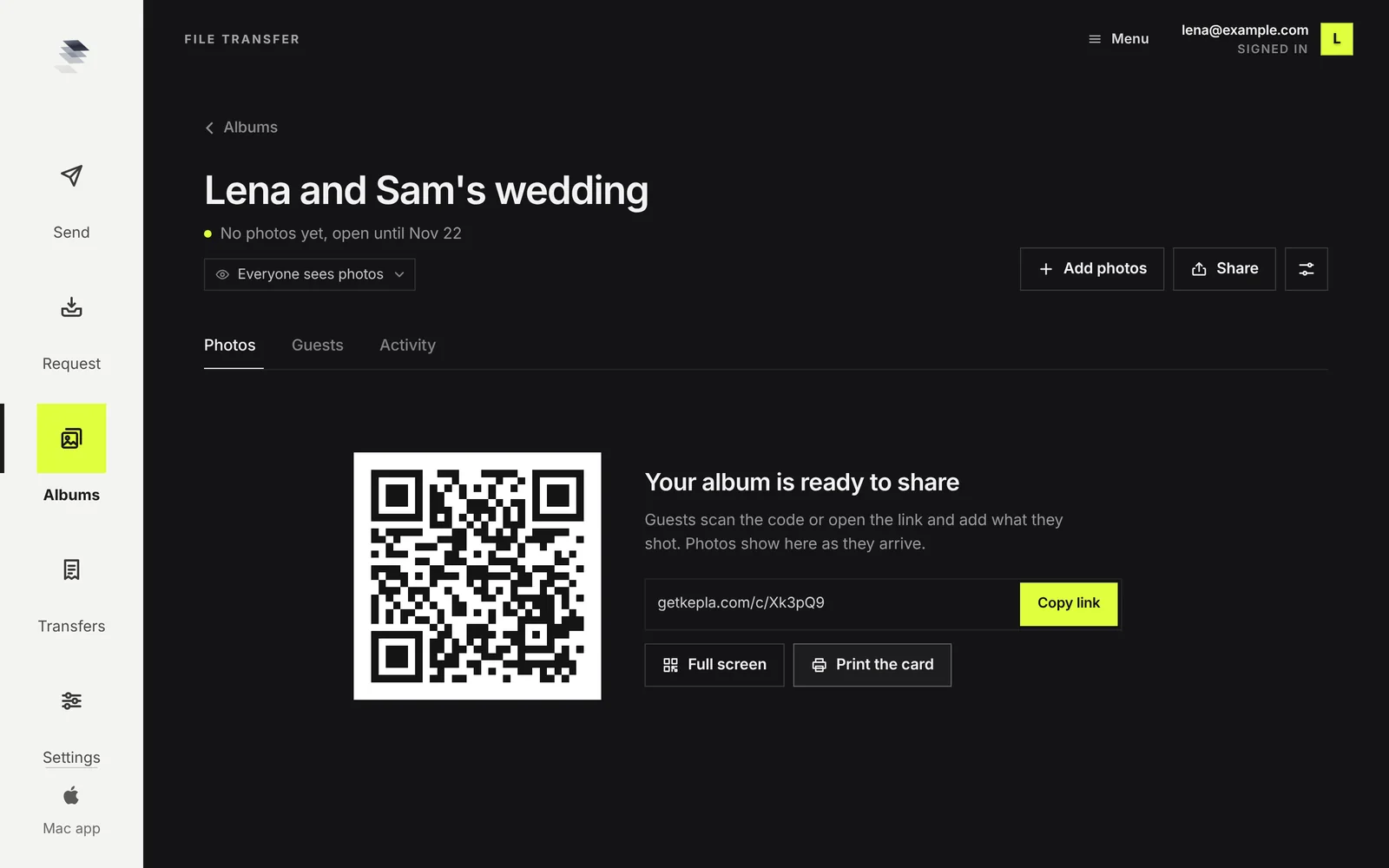
The same code is behind the Share button at any time, with the link, a full screen view and the printable card.
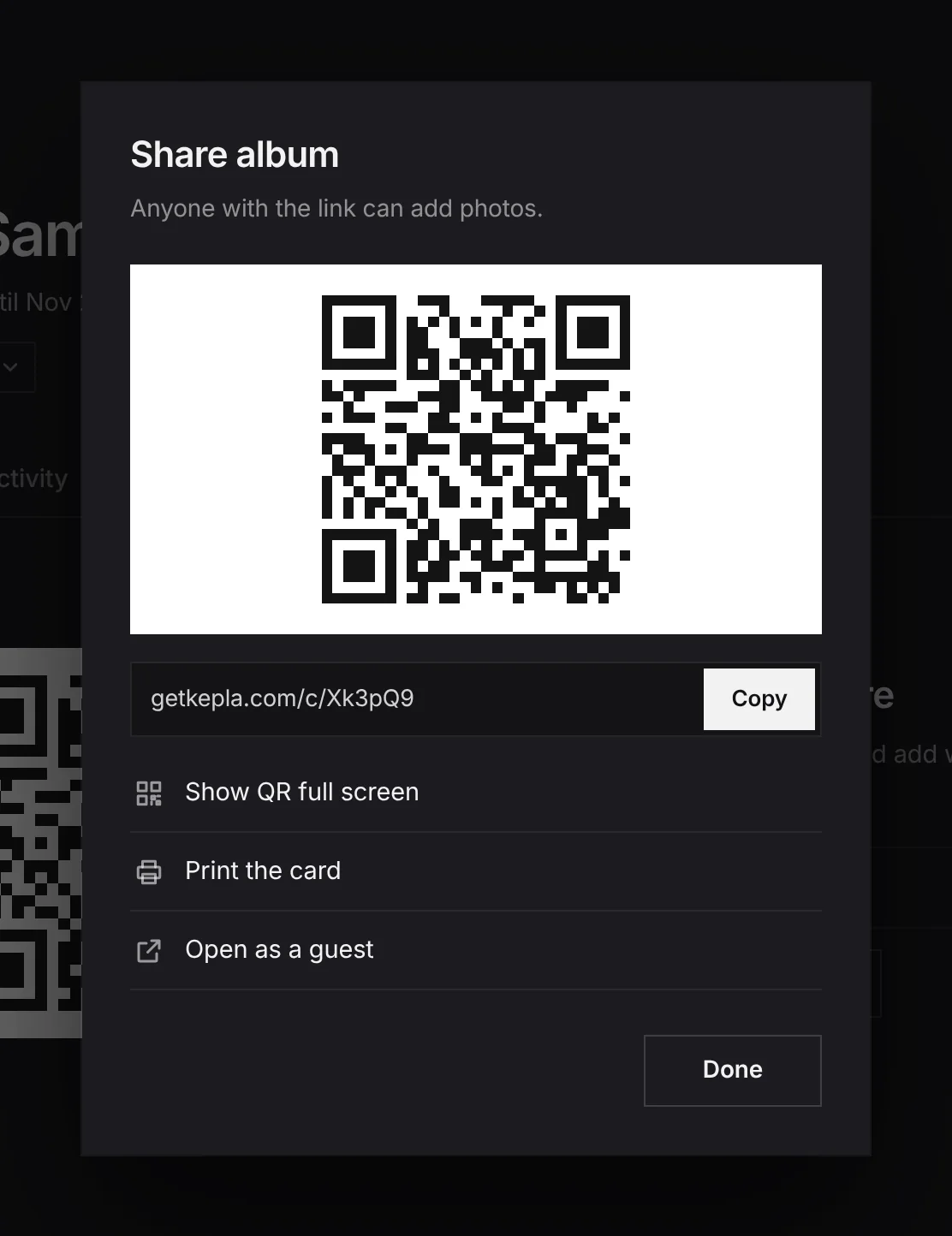
The code does not expire on its own schedule or after a number of scans. It works for as long as the album does. If you stop the album taking photos, the same code still opens it and shows that it is closed.
How to print it so it scans
Use the card, or use the code in your own design
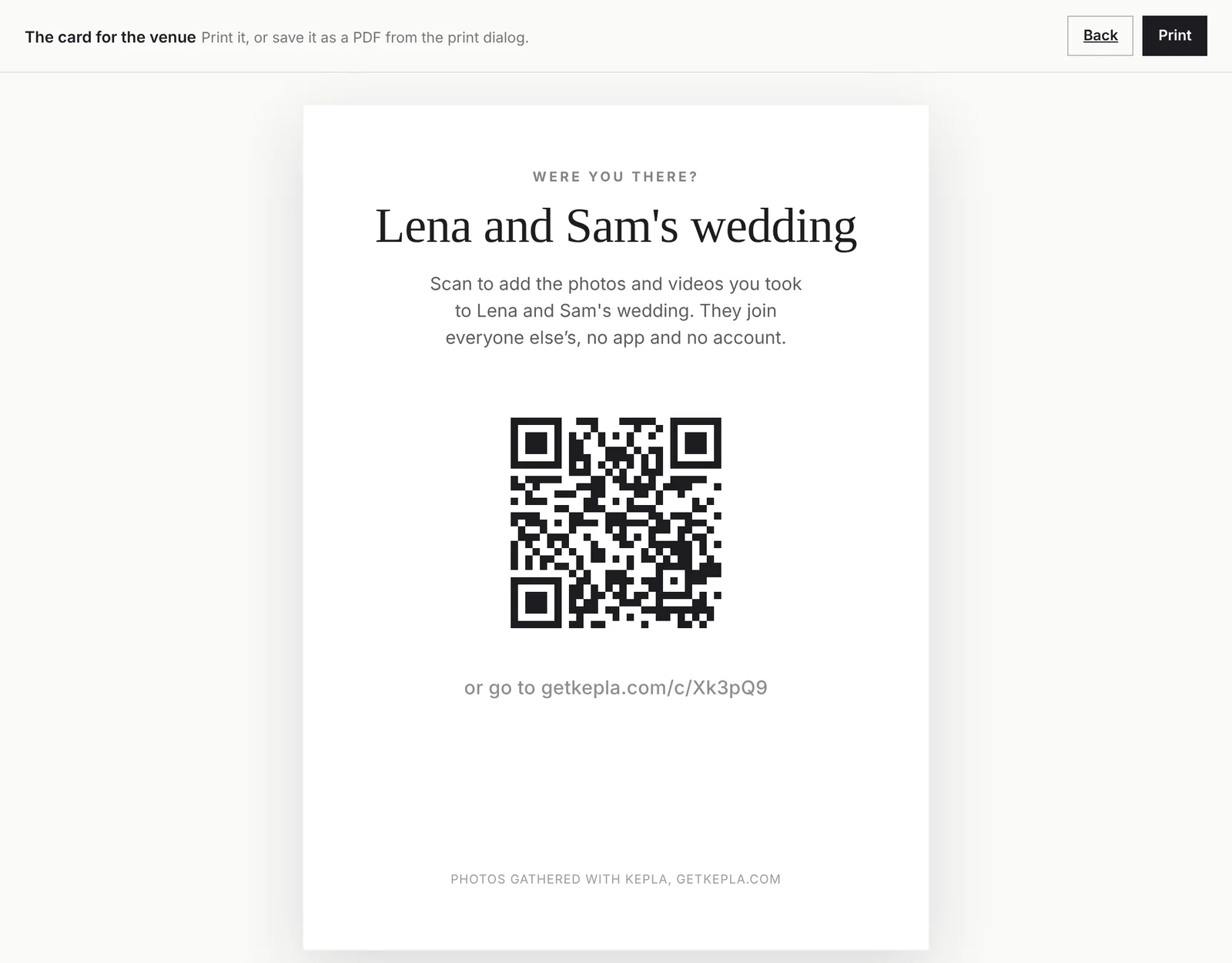
Press Print the card for a ready page: the album name, a line of instruction, the code, the short link. Print it as is, or choose Save as PDF in the print dialog and hand the PDF to your stationer.
Size
The usual rule for print is 10 to 1: a code should be about a tenth as wide as the distance it is read from. Scanova's sizing guide gives the same ratio, 10 cm of code for each metre of distance. In practice:
| Where | Read from | Code width |
|---|---|---|
| Table card or menu | About 30 cm | 3 cm or more |
| Bar or guest book sign | About 1 m | 10 cm or more |
| Welcome sign or easel | 2 to 3 m | 20 to 30 cm |
When unsure, go bigger. A code that is too large still scans. One that is too small does not.
Paper and contrast
- Dark code on a light background. Black on white or cream is the safe choice. A gold foil code on blush paper looks lovely and often will not read.
- Matt, not gloss. Gloss and acrylic reflect venue lights straight into the camera.
- Leave a clear margin. Keep a blank border around the code at least as wide as four of its small squares. Do not let a floral border touch it.
- Do not stretch or recolour it. Scale it evenly. Do not place a monogram over the middle.
Where to put it
Think about when a guest has a free hand and a spare minute. That is rarely at the door.
- Every table. One card per table, standing, facing the seats. This is the placement that matters most.
- The bar. There is a queue and a phone in every hand.
- The guest book or gift table.
- The back of the menu or the order of service. It leaves with the guest.
- The photo booth or dessert table, if you have one.
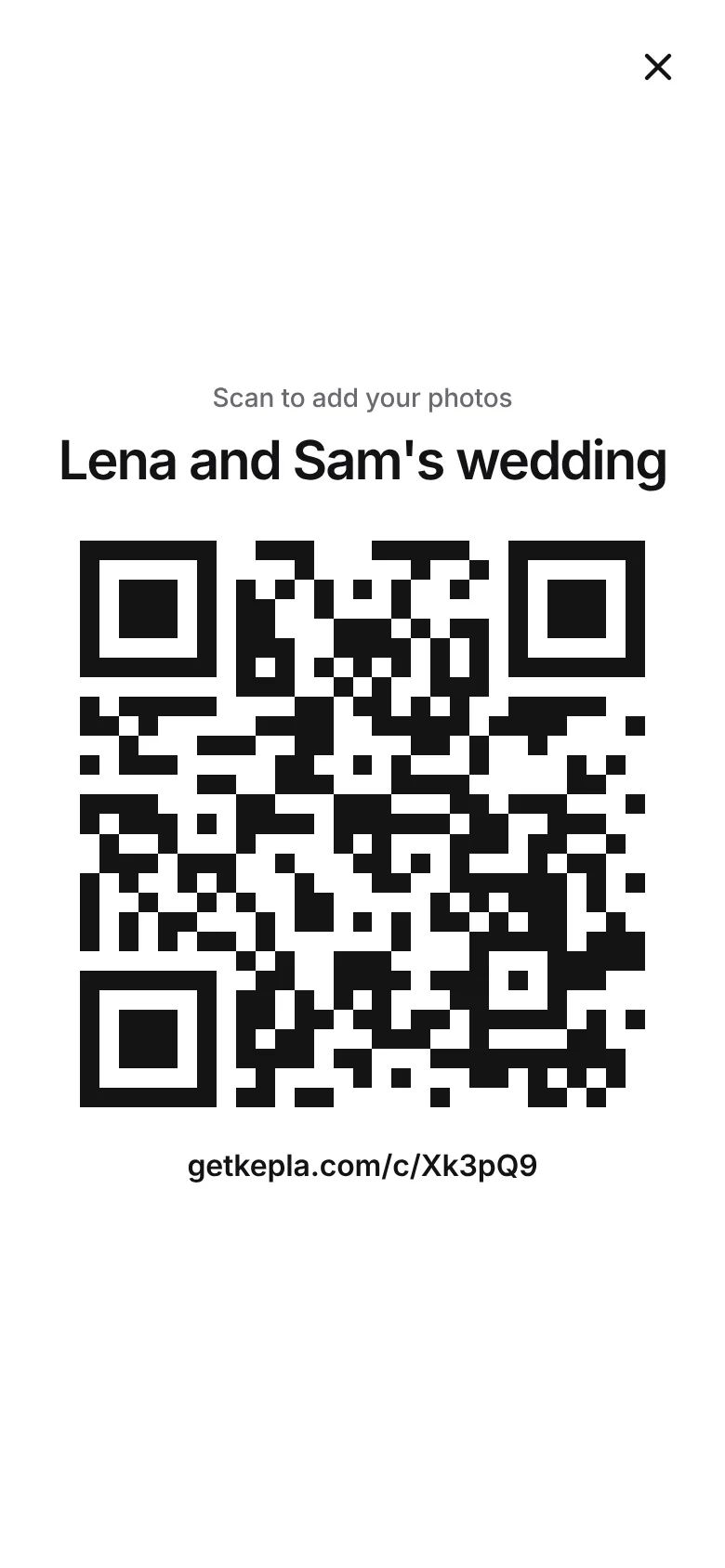
- A screen. If the venue has a display, show the code on it during dinner with the Full screen view.
And the link, not the code, goes in three more places: your wedding website, the morning after message to the wedding party, and the thank you note.
The sentence that makes it work
Signs get glanced at. A person asking gets a response. Give this line to your MC or whoever speaks first, to say once when everyone is seated:
"There is a small card on your table with a code. Scan it with your camera and add the photos you take tonight. No app, it takes ten seconds, and it would mean a lot to them."
One mention at dinner and one before the dancing starts is plenty. More wording for cards and signs is in what to write on the sign.
The five minute test before the day
- Scan the printed card, not the screen, with an iPhone and an Android phone.
- Scan it in dim light, roughly what the room will be at 9 pm.
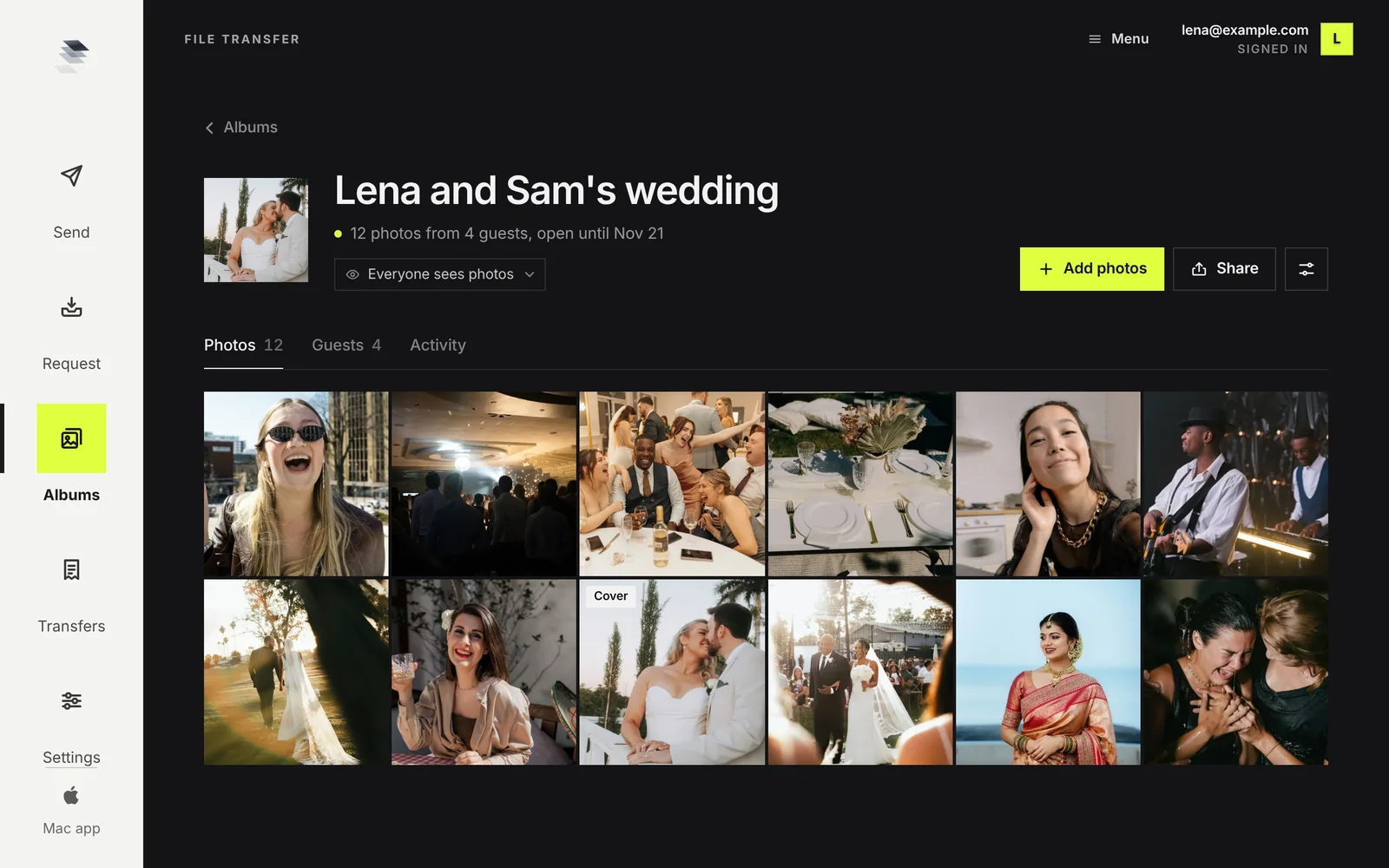
- Add one photo as a guest. Use Open as a guest in the Share sheet, or just scan and add. Check it appears in your album.
- Check what it says under the album title. The line shows how long the album is open, and the control under it shows who sees the photos.
- Check the date. The album should stay open at least a week past the wedding.
FAQ
How do I make a QR code for wedding photos?
Make a shared album in Kepla Albums. The QR code is created with the album and shown on its page, along with a link, a full screen view and a printable card. It is free and takes about a minute.
Do guests need an app to scan it?
No. iPhones on iOS 11 or later and Android phones on Android 9 or later read QR codes with the built in camera. The scan opens a web page where they add photos, with nothing to install and no account.
How big should the QR code be?
About a tenth of the distance it is read from. Around 3 cm wide on a table card, 10 cm on a sign read from a metre away, and 20 to 30 cm on a welcome sign read from across the room. If unsure, print it larger.
Where should we put the QR code at the wedding?
On every table first, then the bar, the guest book or gift table, and the back of the menu. The entrance is the weakest spot, because guests arrive with their hands full.
Does the code expire?
The code works for as long as the album exists. You choose how long the album takes photos, up to 30 days at a time, and you can move that date. After the album's date passes, the album and its photos are deleted.
What if someone's phone will not scan it?
The printable card has a short link under the code that goes to the same page. You can also send the link by message.
Can we use the code in our own stationery design?
Yes. Keep it dark on a light background, scale it evenly, leave a clear border around it, do not cover the middle, and print on matt paper. Then test the printed version with two phones.
Your code is one minute away.
Make the album, print the card, put it on the tables. Guests scan and add with no app and no account.
It stays in your saved guides on this browser. Want it in your inbox too? One email with the link now, and the next guide when it is out. No pitches, unsubscribe with a reply.