Should you approve guest photos before everyone sees them?

When you open an album to a room full of guests, you are also opening it to whatever is on their phones. Most of it is lovely. A little of it is unflattering, off topic or not for the grandparents. You have three ways to handle that: let everything show, look first, or keep the album to yourself. Each one trades effort against how many photos you end up with. This guide lays out the trade so you can pick on purpose.
- Should I approve guest photos before they are shared?
- For an event where you know everyone with the link, usually not. An album that fills in front of guests invites more of them to add, and you can hide the odd one afterwards. Approve first when the link is public, when children are involved, or for work events.
- What happens to photos while they wait for approval?
- They sit in a Review tab that only you see, grouped by the guest who added them. Approve an upload and its photos join the album. Remove it and they are deleted. Guests are told on the page that the host looks first.
- Can I make an album where only I can see the photos?
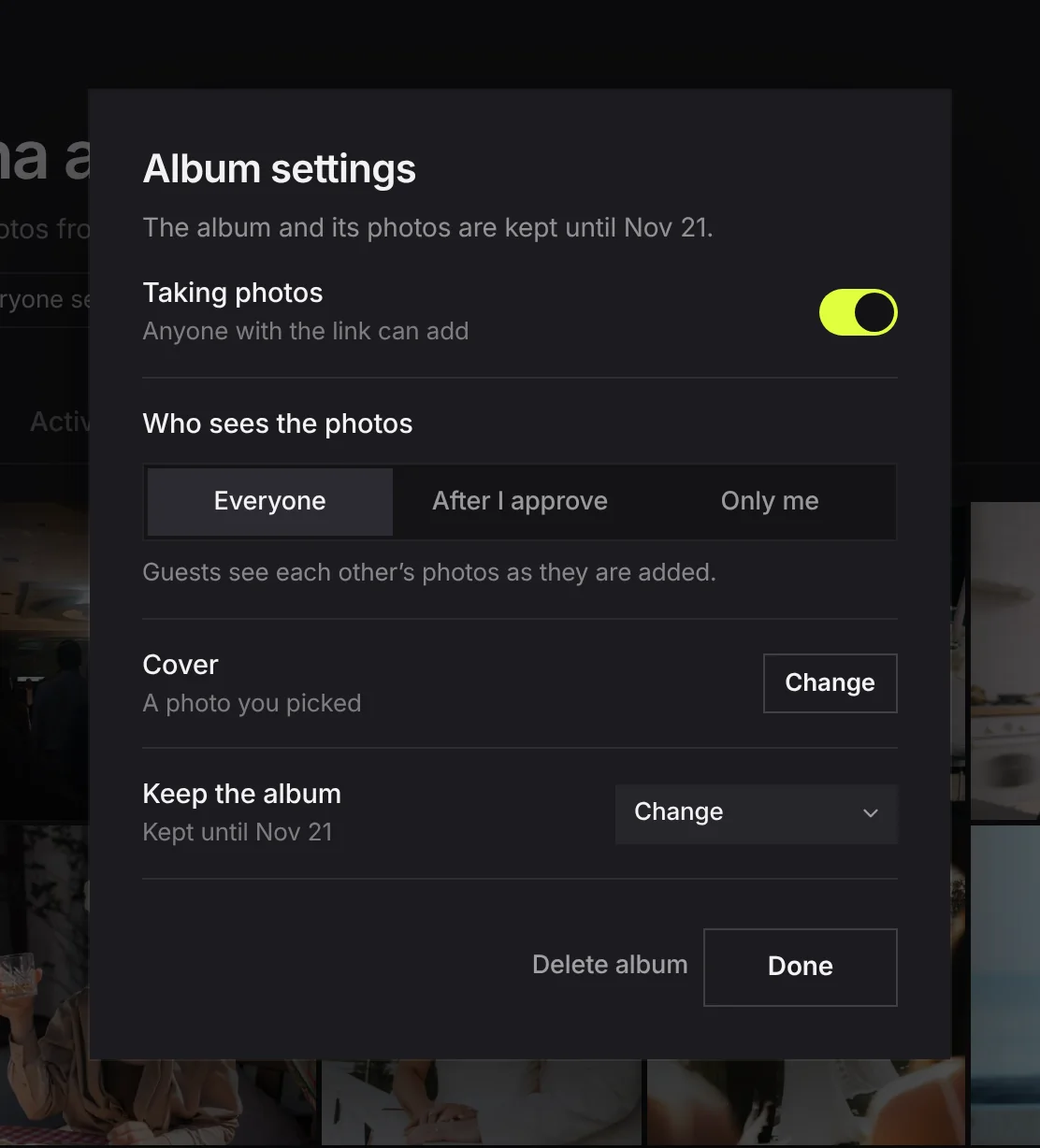
- Yes. Set Who sees the photos to Only me. Guests can still add, but nobody else can browse the album, and the page tells them so. You can change it to Everyone later to share the finished collection.
The three ways an album can behave
| Open | Approve first | Private | |
|---|---|---|---|
| Guests can add | Yes | Yes | Yes |
| Other guests see a new photo | Straight away | After you approve it | Never |
| Your effort | None | A few minutes a day while it is busy | None |
| What guests see when they open it | The album filling up, which invites them to add | Only what you have approved so far | A page to add from, and no album |
| Risk of something unwanted being seen | Some, until you hide it | Very low | None |
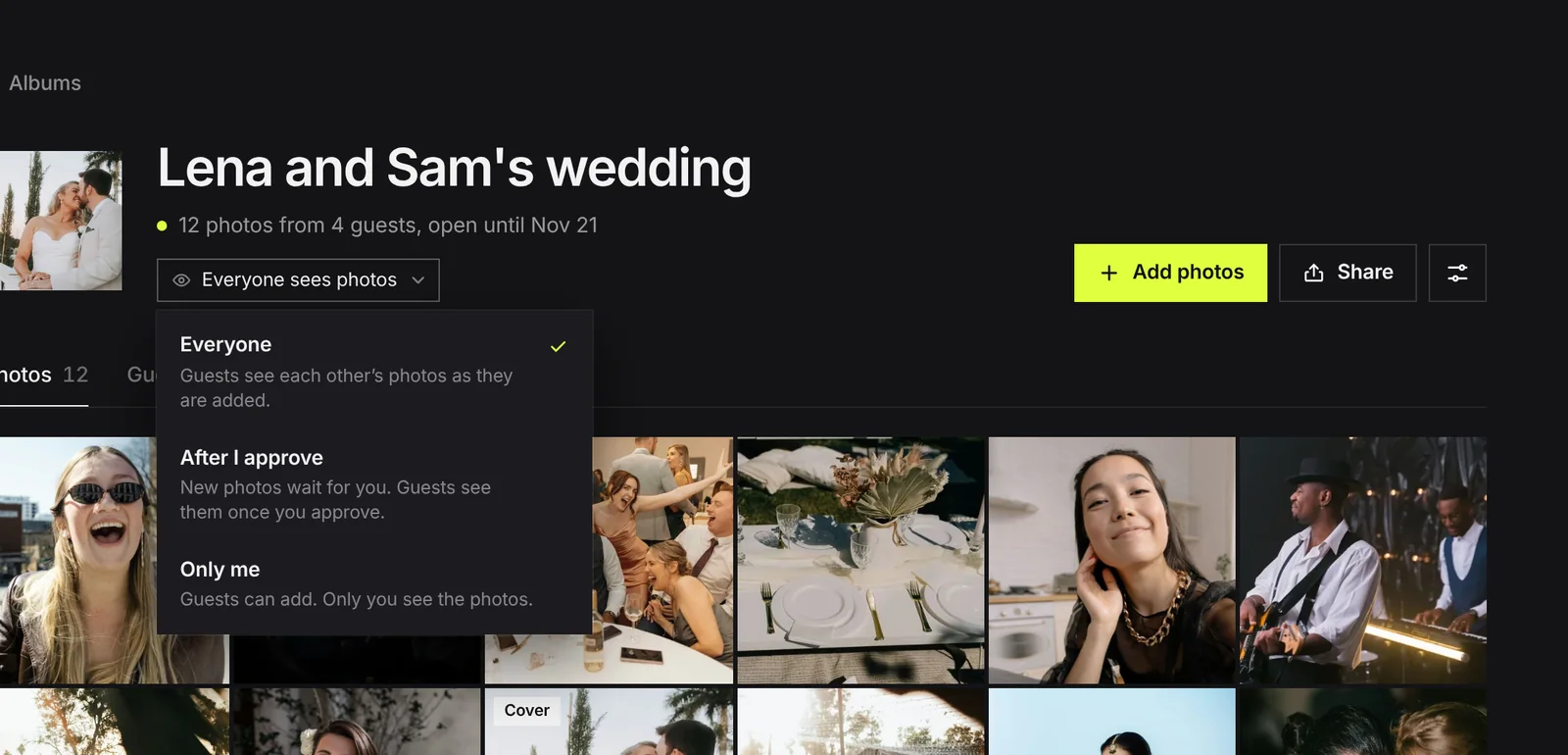
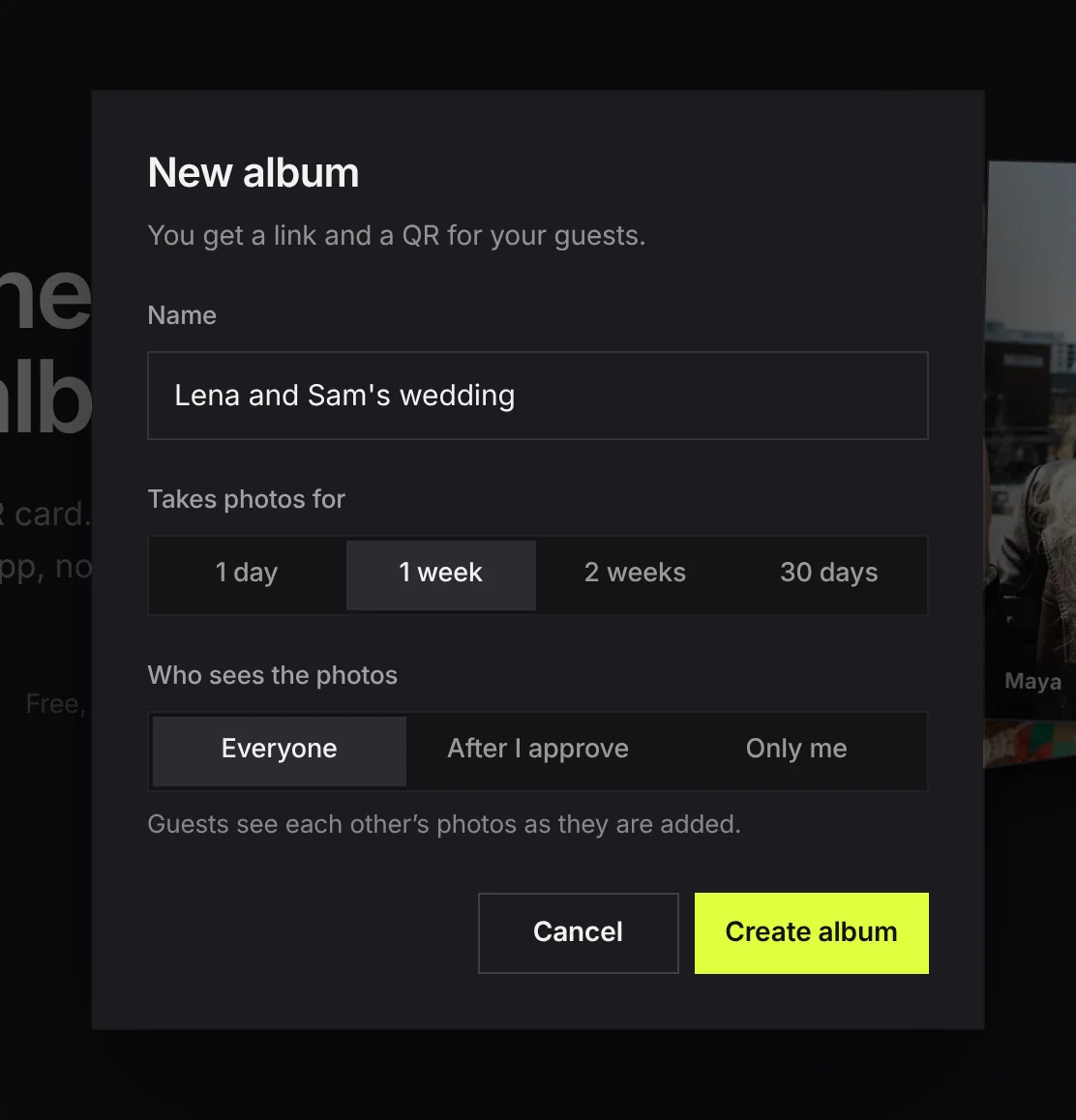
In Kepla Albums this is one setting, Who sees the photos, with three answers: Everyone, After I approve and Only me. You choose when you make the album and can change it later. The control under the album title always shows the current answer, and opens to change it.
Open: everything shows straight away
This is the default, and for most private events it is the right choice.
Why it works: an album that fills in front of people is its own advert. A guest who opens it and sees forty photos from the last hour has a reason to add theirs. An empty page gives them none.
What you risk: a photo you would rather not have in front of everyone is visible until you deal with it. In practice this is rare among invited guests, and it is one press to fix.
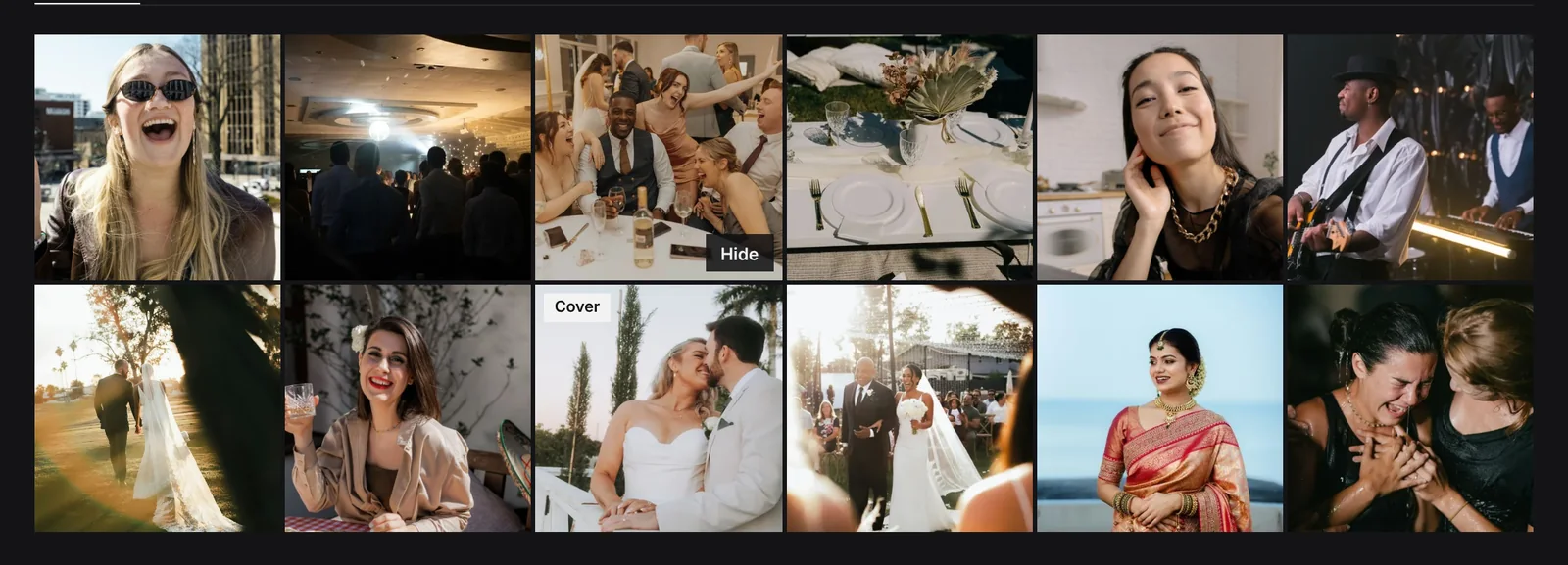
How to handle it: look through the album once the next morning. Hover any photo and press Hide. It disappears for guests and stays in your view, so nothing is lost and no one is told.
Pick open when: you know everyone who has the link, such as a wedding, a birthday or a trip.
Approve first: you look before anyone else does
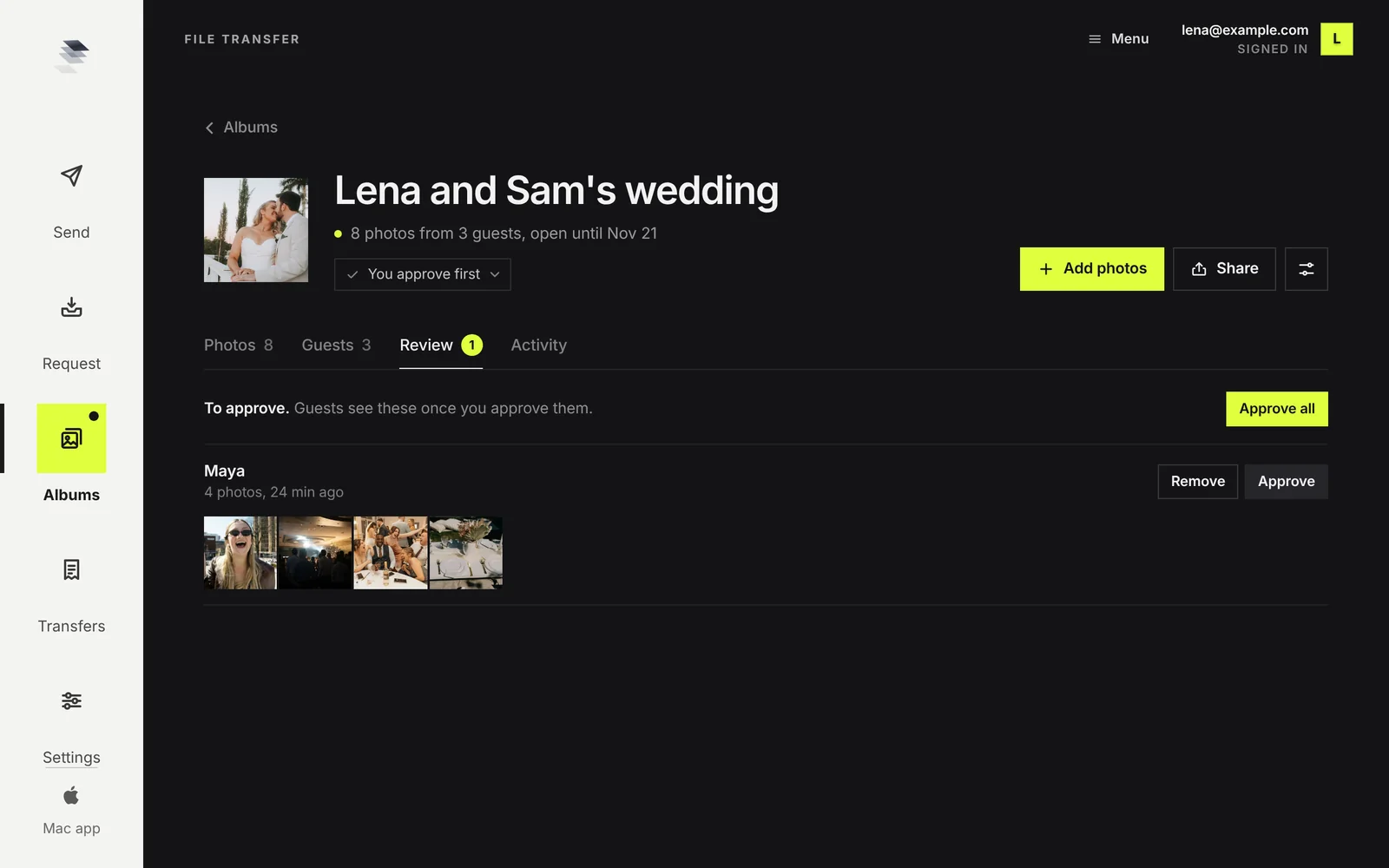
With approval on, each upload lands in a Review tab. You see who sent it, how many photos, and a strip of them. Press Approve and they join the album. Press Remove and they are gone. Approve all clears the queue in one go.
Guests are told. The page they add from says that the host looks at new photos before they show to everyone, and the thank you screen says the same. Nobody is left wondering why their photo is not there.
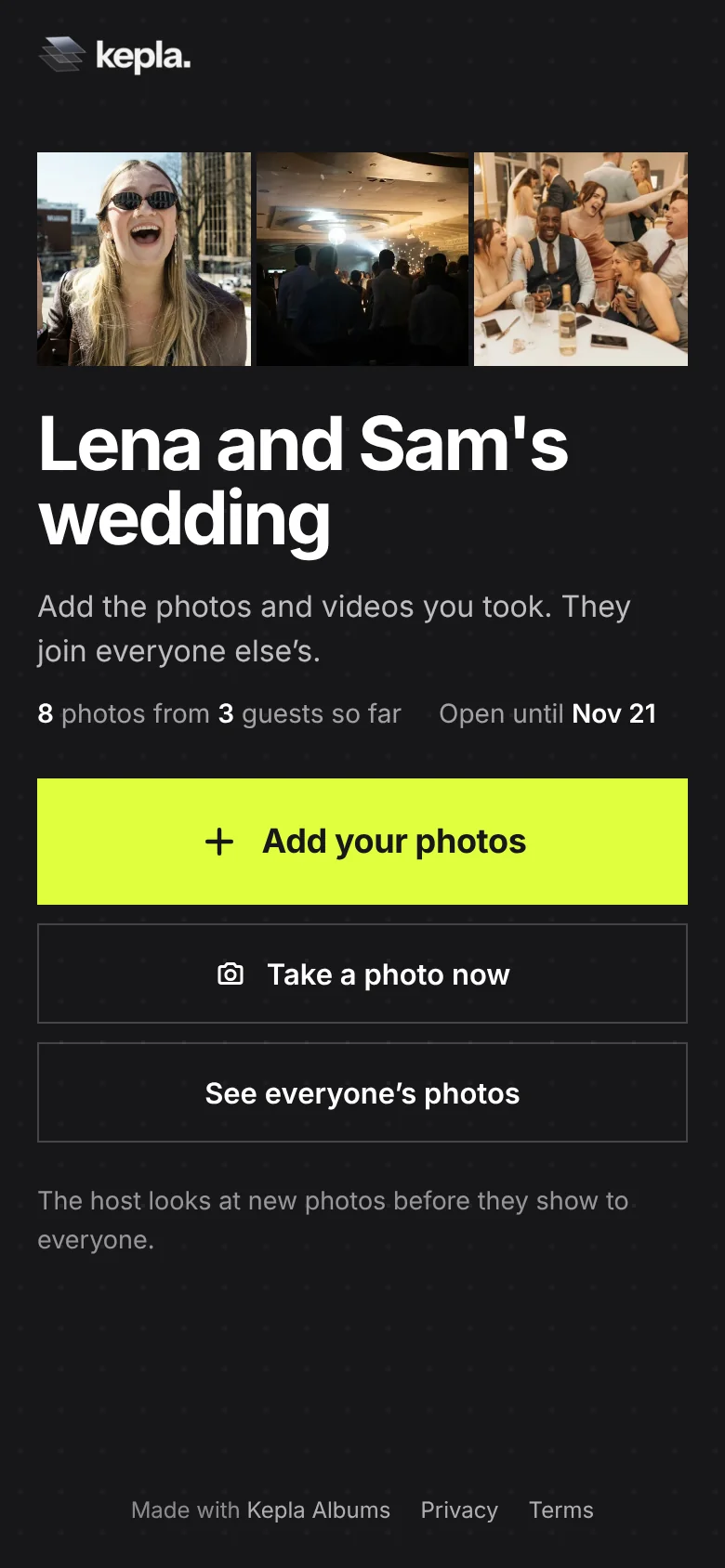
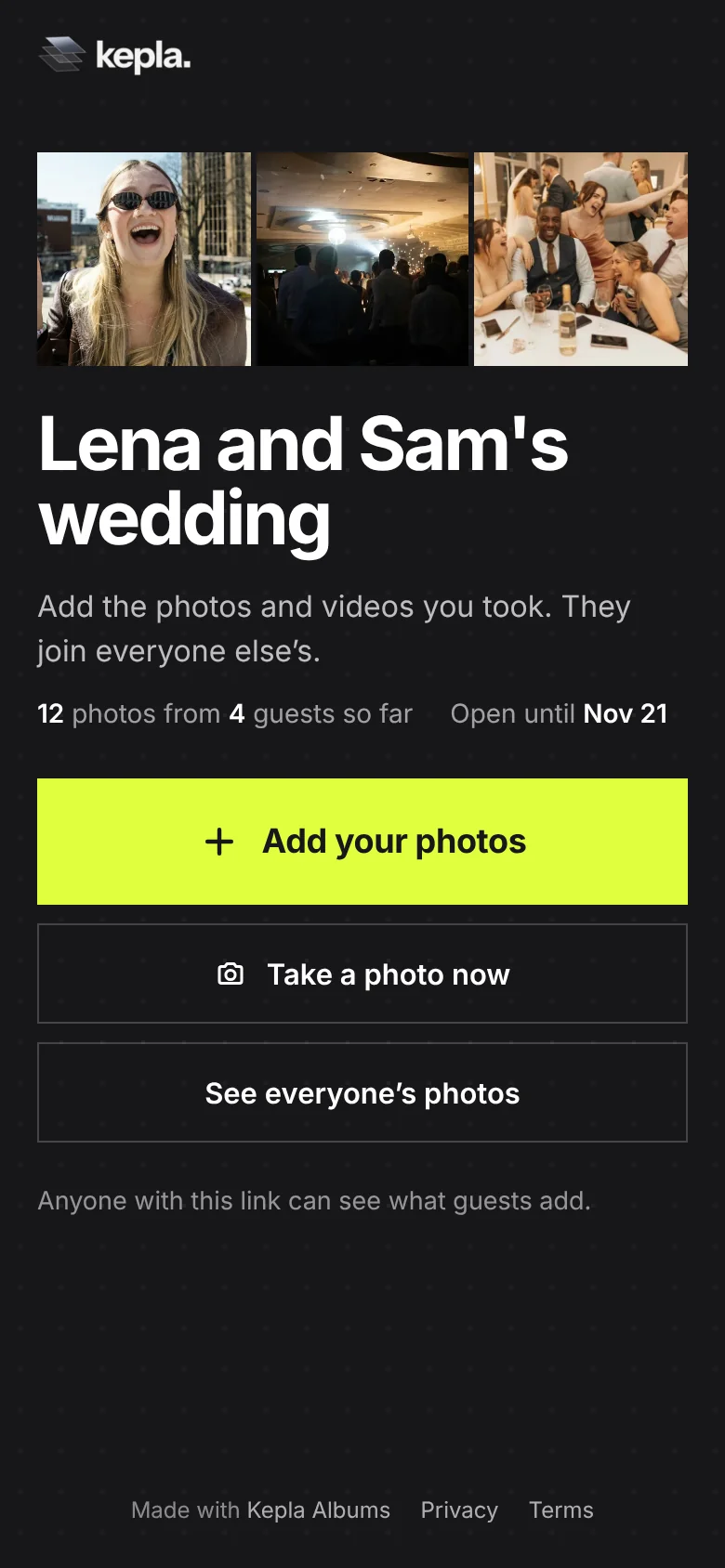
What it costs: your attention at the worst possible time. During a wedding you are not checking a queue, so the album looks empty to guests all evening unless someone else is approving. Either approve from your phone between courses, or accept that photos appear the next day and tell guests so.
A useful detail: turning approval on later does not hide what is already showing. Photos that were visible stay visible, and only new uploads wait.
Pick approve first when: the link is somewhere you do not control, such as a public sign, a website or a large community group. Also for anything with children, and for work events.
Private: only you see the photos
Choose Only me and the album becomes a one way collection. Guests can add. Nobody but you can look. The page says so plainly before they add, and the link to browse the album is not shown.
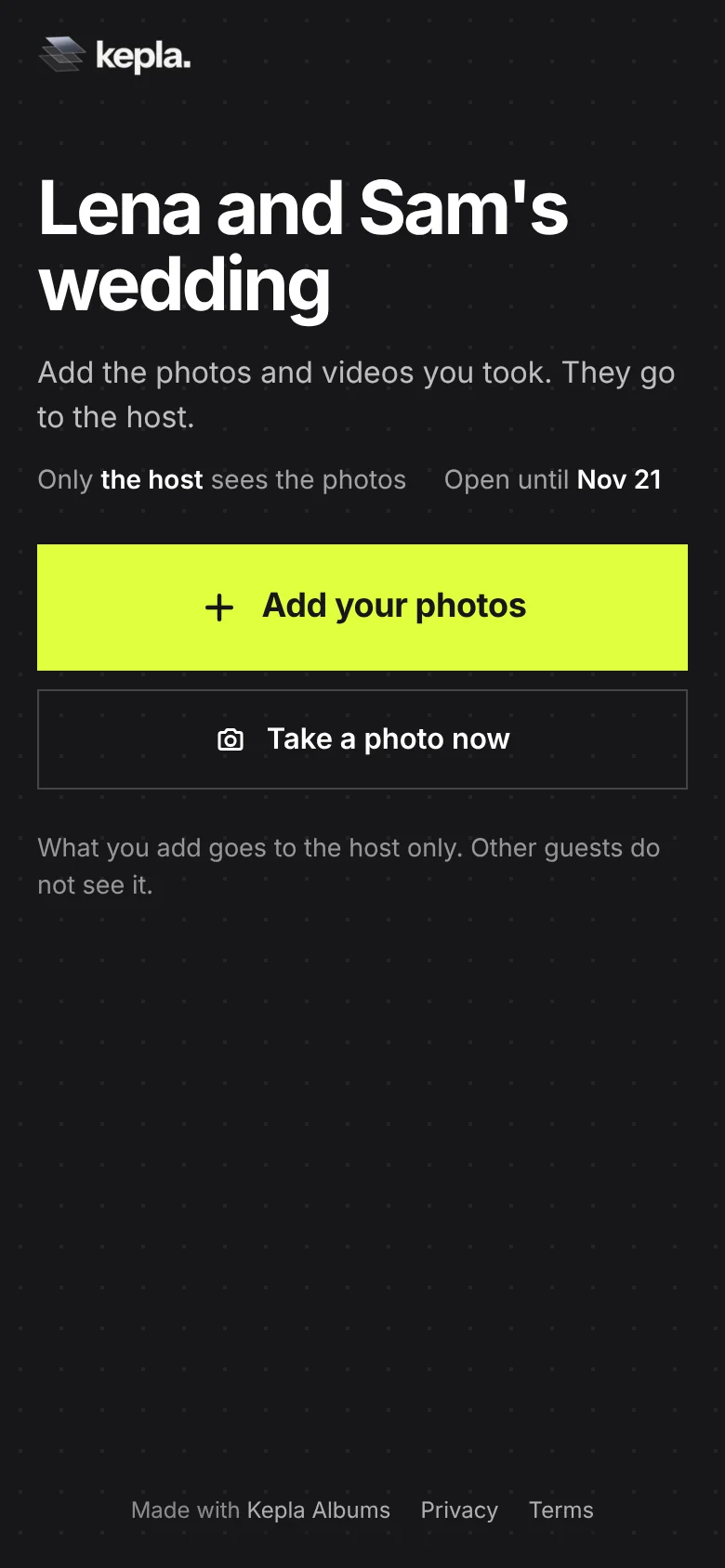
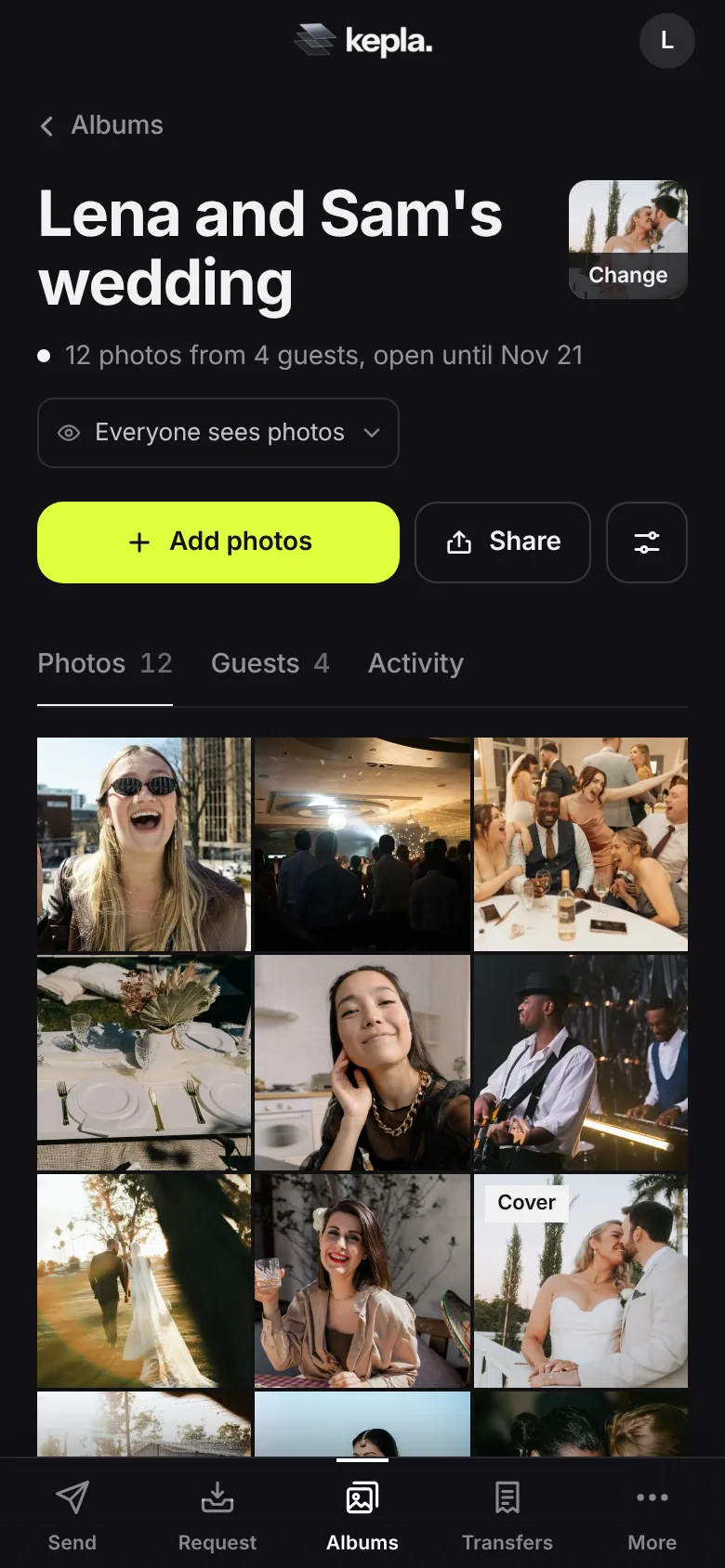
Why choose it: some collections are not for sharing. A surprise slideshow. Photos for a memorial, where the family wants to look first and decide what to show. A school collecting from parents for a yearbook.
What it costs: guests give without getting anything back, so the ask has to carry more weight. Give a clear reason: "Only we will see these, and we are making a book from them."
You can open it later. Collect privately, hide what you do not want shared, then change it to Everyone and send the link round as the finished album.
Hide, remove and stop: the tools you have in any mode
Whichever mode you choose, three controls are always there:
| Control | What it does | Can it be undone? |
|---|---|---|
| Hide a photo | Takes one photo out of the guests' view. It stays in yours. | Yes, press Show |
| Remove an upload | Deletes everything one guest added in that batch, for everyone. | No |
| Stop taking photos | Closes the album to new uploads. Photos already in stay. | Yes, turn it back on |
Hide is the one to reach for. It is quiet, reversible and does not punish a guest for one bad photo in a good batch. Remove is for an upload that should not be there at all.
Your guests can help too. Anyone looking at the album can report a photo. It is hidden from everyone at once, you get an email, and it waits in the Review tab for you to keep hidden or put back. A photo you put back cannot be hidden by a report again, and one person can only report a few photos a day, so nobody can empty an album that way.
Keep a record of what you changed
If you moderate, someone will eventually ask where their photo went. The Activity tab is the answer. It lists, newest first, every guest who added and every change you made: what you hid, what you approved, what you removed, when you changed who can look.
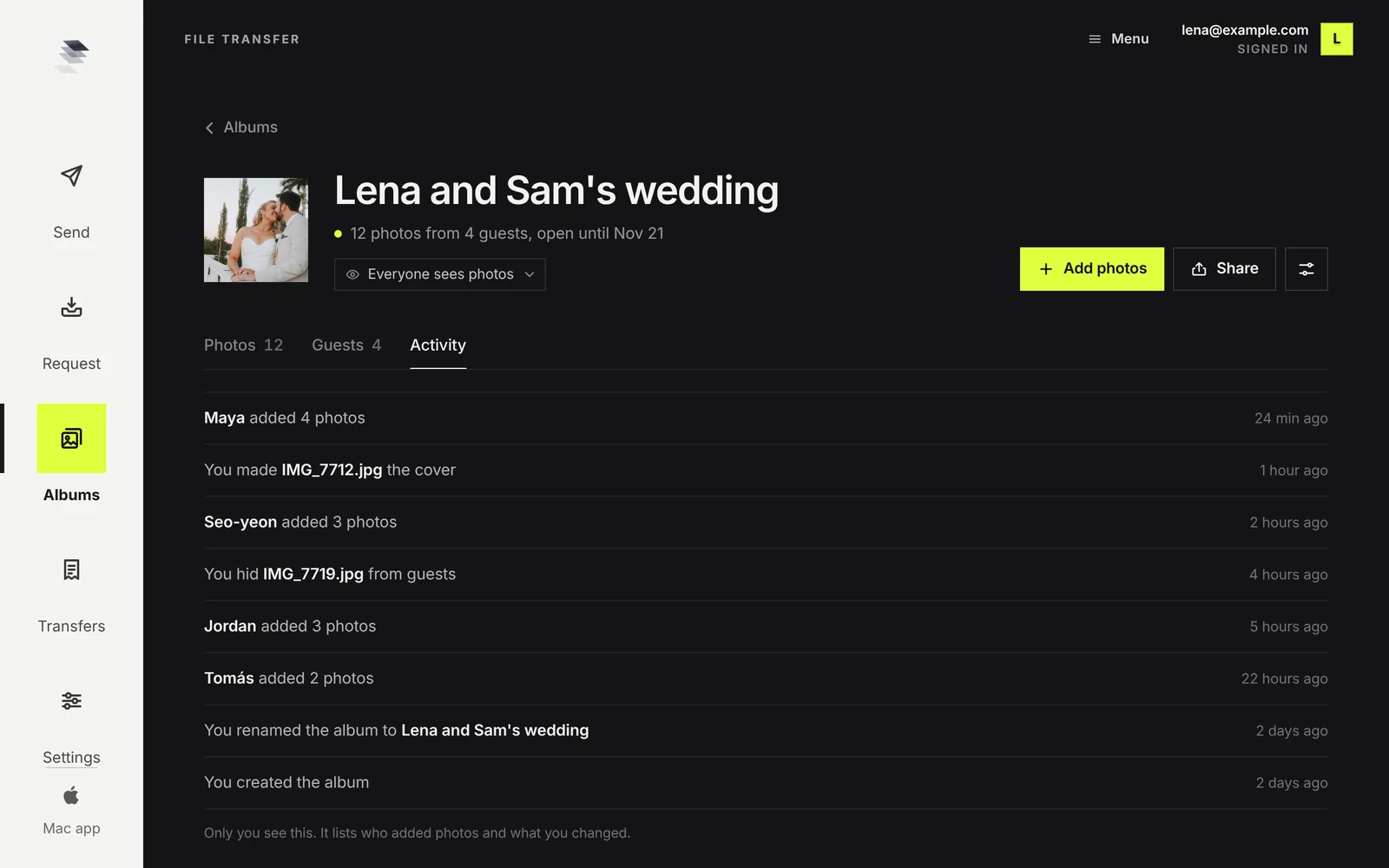
It is also a simple way to check your own settings after the fact. If the album was private for the first two days and open after, the log shows the moment it changed.
A two question way to decide
- Do you know everyone who will have the link? If yes, go open. If no, approve first.
- Is the collection meant to be shared at all? If not, or not yet, go private.
And remember that none of this is fixed. Start open and change to After I approve if something comes in that worries you. Start private and open up when you are ready. A change takes effect at once, and the page your guests see updates to match.
For the full plan around a wedding, see how to collect photos from wedding guests. For events with colleagues or children, see collecting photos from a trip, reunion or team event.
FAQ
Should I approve guest photos before they are shared?
For an event where you know everyone with the link, usually not. An album that fills in front of guests invites more of them to add, and you can hide the odd one afterwards. Approve first when the link is public, when children are involved, or for work events.
What happens to photos while they wait for approval?
They sit in a Review tab that only you see, grouped by the guest who added them. Approve an upload and its photos join the album. Remove it and they are deleted. Guests are told on the page that the host looks first.
Can I make an album where only I can see the photos?
Yes. Set Who sees the photos to Only me. Guests can still add, but nobody else can browse the album, and the page tells them so. You can change it to Everyone later to share the finished collection.
What is the difference between hiding and removing?
Hiding takes one photo out of the guests' view while keeping it in yours, and it can be undone. Removing deletes everything a guest added in that upload, for everyone, and cannot be undone.
If I turn approval on later, do existing photos disappear?
No. Photos that were already showing stay visible. Only uploads that arrive after you turn approval on wait for you.
Can guests tell that I hid their photo?
They are not notified. A hidden photo simply no longer appears in the album guests see. Your Activity tab keeps a record of what you hid, visible only to you.
Who can open the album in the first place?
Only people who have the link or the QR code. The album is not listed publicly. Privacy settings then decide what those people can see once they open it.
You choose who sees what.
Everyone, after you approve, or only you. One setting, changeable at any time.
It stays in your saved guides on this browser. Want it in your inbox too? One email with the link now, and the next guide when it is out. No pitches, unsubscribe with a reply.