How to send photos from Lightroom to a client, straight to a gallery link.

The last step of every job is the same: the finals leave Lightroom and reach a client. For most of us that is Export to a folder, zip the folder, upload the zip somewhere, copy a link, write an email, and then wonder for two days whether it arrived. This guide is about collapsing all of that into the Export dialog you already use, with a free Lightroom Classic plugin, and about the few settings that decide how the photos look on the other end.
- Can Lightroom export straight to a client gallery?
- Lightroom Classic can, through an export plugin. With Kepla Transfer installed, Export To: Kepla Transfer renders the JPEGs, uploads them as one transfer and gives you a link that opens as a full-screen gallery. The plugin is free and needs no account.
- Does the plugin work with Lightroom (cloud) or Lightroom Mobile?
- No. Export plugins are a Lightroom Classic feature. From the cloud app, export the JPEGs to a folder and drop them on getkepla.com/transfer, which gives the client the same gallery.
- What export settings should I use for client delivery?
- JPEG, sRGB (the plugin sets both), Image Sizing off for full resolution, Quality 85 to 90, Output Sharpening for screen at standard. Up to 4 GB a transfer from the plugin, 10 GB from the web page.
Export is the handoff
Lightroom Classic has had export plugins since version 2. Most of them push photos to a social network or a print lab, which is why photographers rarely look at the Export To menu at the top of the dialog. It is the right place for delivery, because everything that makes a client delivery good happens at export: the size, the quality, the sharpening, the file names. Everything that makes it slow happens after: the zip, the upload, the link, the email.
With Kepla Transfer for Lightroom installed, the dialog gains one section. You fill in your email, who it goes to, a title, how long the link lives. You press Export. Lightroom renders the JPEGs as always, the plugin packs them into one archive and uploads it straight to storage, builds the gallery previews from your catalog's own previews so the client's phone never waits on a 6,000 pixel file, and finishes. A dialog shows the link with an Open button, and the link is on your clipboard before you have switched windows. If you added recipients, the email has already gone out with your name and title on it.

The point is not that it saves five minutes. It is that the delivery becomes a thing you cannot do wrong. No zip left in Downloads, no link pasted into the wrong thread, no "did you get the photos?" the next morning, because the receipt tells you when they opened it.

Install it once
The plugin is a folder of Lua, the scripting language Lightroom runs plugins in. Nothing is installed outside it, and every file in it is readable from the download page.
- Download it from getkepla.com/lightroom. Safari unzips it into a folder called KeplaTransfer.lrplugin; Chrome and Firefox leave a zip you double-click. On Windows, right-click the zip and Extract All.
- Move the folder somewhere it can stay, like Documents. Lightroom remembers the path, so a plugin left in Downloads breaks the day you clean up.
- File → Plug-in Manager → Add, pick the folder, Done. The status reads "Installed and running". Kepla Transfer now appears under Export To.
That is the install. There is no account to make, no key to paste. The first export from a new email address gets a confirm link by email, once, so nobody can send in your name.


The settings that matter
The plugin sets JPEG and sRGB for you, because a client delivery in ProPhoto or TIFF is a support ticket waiting to happen. The rest of the Export dialog is yours, and three choices matter:
- Image Sizing: off for a full delivery. The client saves the photo at the size you shot it, and the gallery builds its own screen-sized versions, so there is no cost to full resolution on their phone. Size to 2,048 on the long edge only for a sneak peek or a set that is explicitly web only.
- Quality 85 to 90. Above 90 the files balloon with no visible gain; below 80 the sky starts to band. 85 is where most labs and most galleries land.
- Output Sharpening: Screen, Standard. The client is looking at a screen. Sharpen for one.
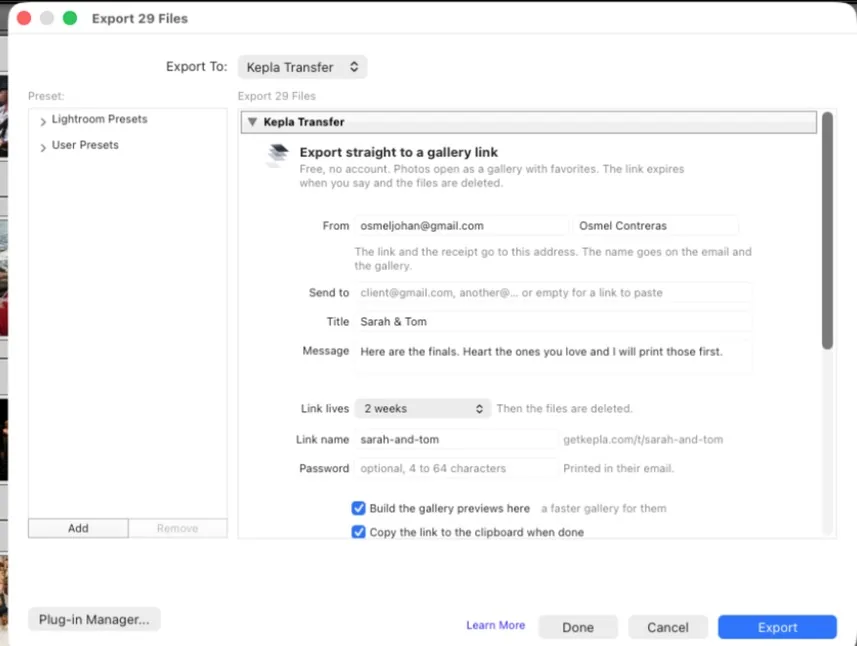
In the Kepla Transfer section, the fields that are worth a second of thought:
- Send to. Addresses separated by commas, up to ten. Leave it empty and you get a link to paste wherever the conversation already is, which for a lot of couples is a text thread.
- Title. This is the gallery's headline and the email's subject. "Sarah & Tom" beats "Export 2026-11-06".
- Link lives. Three days covers a weekend and a slow client. Two weeks is the ceiling. When it expires the files are deleted, which is a feature: your delivery is not quietly becoming someone's backup.
- Link name. Optional. getkepla.com/t/sarah-and-tom reads better in a text than a code, and it is yours for the life of the link.
- Password. Printed in the client's email, asked once on the page. Use it for anything you would not want forwarded.
Save all of it as an export preset (the Add button under Presets, bottom left of the dialog) and the next delivery is select, ⌘ Shift E, Export.
What the client gets
This is the transfer from the export above, as Sarah opens it. Her name is not on it yet because nobody was added in the dialog; the link was pasted into the thread instead.

Below the cover, the photos. Full screen on any phone or laptop, laid out by the gallery from the previews the plugin built, so nothing waits on a 6,000 pixel file.

Any photo opens full screen. Press L, or tap the heart, and it is a favorite. Favorites are saved with the gallery and the photographer sees them, which is the fastest way to find out what to print.


Share on a single photo makes a story card with your name on it. On a phone it goes straight to the Instagram share sheet; on a computer it saves, to be sent to a phone. Either way your next client finds you from a story.

And on your side, the receipts. One when the link is opened, one when the files are downloaded, by address. The day before the link expires, a note with one click to extend it, remind them, or add someone you forgot.


When the web page is the better route
The plugin is for finished JPEGs. For everything else, getkepla.com/transfer does the same job with a drag and drop and a few things the plugin cannot:
- RAW files, catalogs, video. The plugin exports what Lightroom renders, which is JPEGs. A RAW handoff to an editor goes through the web page, byte for byte.
- Over 4 GB. The plugin tops out at 4 GB a transfer; the web page takes 10 GB. A thousand full-size JPEGs at 85 is usually 4 to 6 GB, so a big wedding is either two exports or one drag onto the web page.
- Lightroom (cloud) and Lightroom Mobile. No plugins there. Export to a folder, then the web page.
Either way the client ends up in the same gallery, with the same receipts, and the same link that dies on the day you chose.
FAQ
Can Lightroom export straight to a client gallery?
Lightroom Classic can, through an export plugin. With Kepla Transfer installed, Export To: Kepla Transfer renders the JPEGs, uploads them as one transfer and gives you a link that opens as a full-screen gallery. The plugin is free and needs no account.
Does the plugin work with Lightroom (cloud) or Lightroom Mobile?
No. Export plugins are a Lightroom Classic feature. From the cloud app, export the JPEGs to a folder and drop them on getkepla.com/transfer, which gives the client the same gallery.
What export settings should I use for client delivery?
JPEG, sRGB (the plugin sets both), Image Sizing off for full resolution, Quality 85 to 90, Output Sharpening for screen at standard. Up to 4 GB a transfer from the plugin, 10 GB from the web page.
How long does the client have to download?
You choose when you export: one hour, six hours, a day, three days or two weeks. When the link expires the files are deleted. You can extend it from the receipt email before it ends.
Does the client need an account or an app?
No. The link opens in any browser, on a phone or a laptop. They can heart photos, send you their picks, save one photo at full resolution or download everything as one ZIP.
Is it safe to send client photos this way?
The files travel over HTTPS from Lightroom straight into private encrypted storage. Every download runs through a signed link that expires with the transfer, and nothing is recompressed on the way. Add a password at export time if the set is sensitive.
One Export, one link, a gallery on the other end.
Lightroom Classic, Mac or Windows. Install once, then every delivery is select, Export, done. No account, up to 4 GB a transfer, the link on your clipboard.