 Kepla Transfer
Export straight to a gallery link.
Select the finals, Export, choose Kepla Transfer. The JPEGs go up as one transfer, your client opens a full-screen gallery with favorites, and the link is on your clipboard before you switch windows.
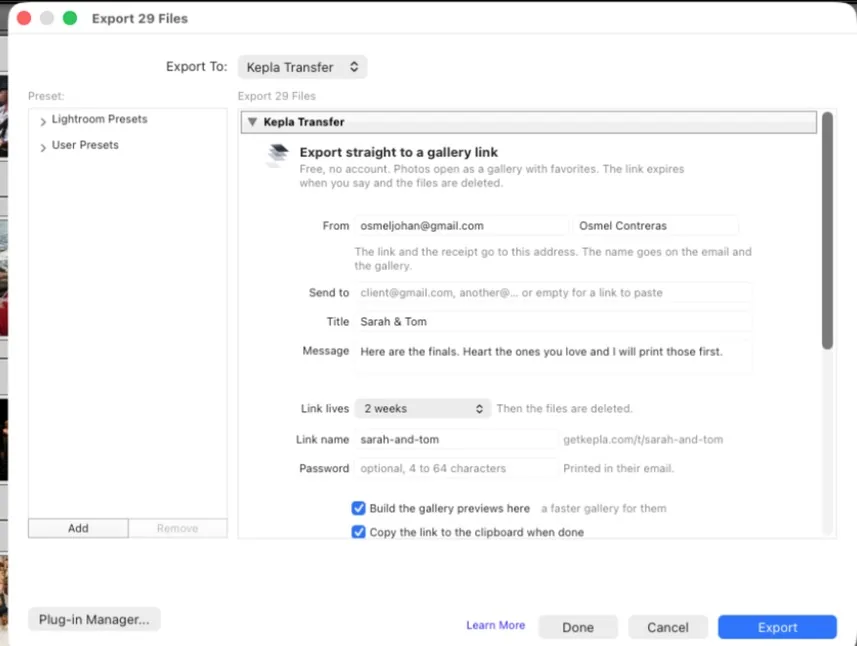

Three steps, the third is a dialog.
Lightroom renders as always. The plugin packs, uploads straight to storage, builds the gallery previews from your catalog, and hands you the link.
Select, then Export
⌘ Shift E, or right-click → Export. Export with Previous repeats the last send in one click.

Choose Kepla Transfer
At the top of the dialog, Export To: Kepla Transfer. Your email, who it goes to, a title, how long the link lives. Save it as a preset.

The link is ready
On your clipboard and, if you added anyone, in their inbox with your name and title on it.
A gallery, not a zip.
This is the transfer from the dialog above, exactly as the client opens it. Your name on the cover, the message you typed, hearts that come back to you, and a save button that hands over the full-resolution file.


You know the moment they open it.
An email the first time each person opens the link and the first time they download. The day before it expires, a note with one click to extend it, remind them, or add someone you forgot.


Install once
For Lightroom Classic on a Mac or a PC. The cloud Lightroom app and Lightroom Mobile do not take plugins.
- Download, then find it.Safari unzips it for you: look in Downloads for a folder called
KeplaTransfer.lrplugin. Chrome and Firefox leaveKeplaTransfer.lrplugin.zip: double-click it and the folder appears next to it. - Move the folder somewhere it can stay.Lightroom remembers where the plugin lives, so a folder left in Downloads breaks the day you clean up. Documents, or a folder called Lightroom Plugins, is right. Do not rename it.
- Add it in Lightroom Classic.File → Plug-in Manager… → Add (bottom left) → pick the
KeplaTransfer.lrpluginfolder → Done. The status reads “Installed and running”.
No Plug-in Manager step: the Modules folder
Lightroom Classic loads anything in its Modules folder on launch. In the Finder press ⌘ Shift G, paste ~/Library/Application Support/Adobe/Lightroom/Modules (make the Modules folder if it is not there), drop KeplaTransfer.lrplugin in, and restart Lightroom Classic.
- Download, then unzip it.In Downloads, right-click
KeplaTransfer.lrplugin.zip→ Extract All… → Extract. You get a folder calledKeplaTransfer.lrplugin(Windows shows it as a plain folder, which is fine). - Move the folder somewhere it can stay.Lightroom remembers where the plugin lives, so a folder left in Downloads breaks the day you clean up. Documents, or a folder called Lightroom Plugins, is right. Do not rename it.
- Add it in Lightroom Classic.File → Plug-in Manager… → Add (bottom left) → pick the
KeplaTransfer.lrpluginfolder → Done. The status reads “Installed and running”.
No Plug-in Manager step: the Modules folder
Lightroom Classic loads anything in its Modules folder on launch. Press Win R, paste %APPDATA%\Adobe\Lightroom\Modules (make the Modules folder if it is not there), drop KeplaTransfer.lrplugin in, and restart Lightroom Classic.
Updating later: download again and replace the folder in the same place. Lightroom picks up the new version on the next launch.
Limits
- A transfer from the plugin up to 4 GB and 3,000 photos
- A transfer from getkepla.com/transfer up to 10 GB
- Transfers a day, same as the web 25
- Videos, RAW, catalogs not from the plugin; the web page takes anything
- Price free
Questions
Does it see my catalog or my originals?
No. It is a standard export plugin: Lightroom renders the JPEGs to a temporary folder, the plugin uploads them and deletes the folder. It reads two things from the catalog for the gallery previews, the cropped dimensions and the preview JPEG Lightroom already keeps for each photo. The source is a few hundred lines of Lua and you can read all of it from the link above.
Why 4 GB here and 10 GB on the web?
The plugin writes a plain ZIP without zip64 so the gallery can read any photo as a byte range. That format tops out at 4 GB. For a bigger send, split the export or drop the files on getkepla.com/transfer.
Where do the uploads go?
Straight from Lightroom to the same storage the web page uses, in one request for a small transfer or in 32 MB parts with a checksum each for a large one. Nothing goes through a third party.
Can I turn off the previews step?
Yes, there is a checkbox in the section. The gallery then builds its previews from the originals when your client opens it, which is slower for them on a phone.
I do not see Kepla Transfer in the Export dialog
At the top of the Export dialog, open the “Export To” menu: it lists Hard Drive, Email, CD/DVD and every plugin. If it is not there, open File → Plug-in Manager and check the plugin says “Installed and running”. If it says the folder cannot be found, the folder moved after it was added: remove it and add it again from its new place.
Does it work in Lightroom (cloud) or Lightroom Mobile?
No. Export plugins are a Lightroom Classic feature; the cloud app (the one called just “Lightroom”, also on the Mac App Store) has no Plug-in Manager. From it, export the JPEGs and drop them on getkepla.com/transfer.
What is the “One more step” dialog?
The first export from an email address that has never sent with Kepla. We mail a confirm link to that address, once, so nobody can send in your name. The transfer is uploaded and waiting; it goes out the moment the link is clicked, and the link to the gallery is already on your clipboard.


Something failed
The dialog shows the server's own words. The usual ones: a mistyped email, a password shorter than four characters, a transfer over 4 GB, or the connection dropping during the upload, in which case Export again. Write to hello@getkepla.com with the message and we will look.